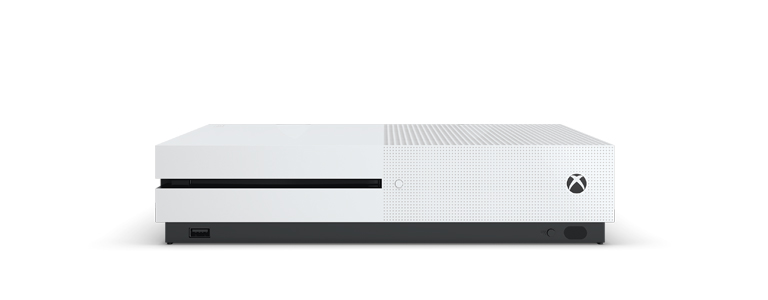
So with the recent additions to the PS4 and Xbox One range, I have found that a few friends have opted to start with an Xbox One this generation. Having had one for a while, I wanted to share with them a little bit of the combined knowledge my friends and I have picked up.
Installing from disk. Ok, if you just bought your Xbox, you likely got it bundled with some games on disk. For some reason, initially installing from disk takes a long time, we are not sure why, but it seems that the game attempts to install the updates first, and takes quite a while to do it. We found that by disconnecting from Live (or the internet), installing the game from disk, then going online and allowing it to get the updates, speeds up the process by quite a significant amount.
Get yourself a portable external HDD. 1-2 TB should do to start with. The reasons behind this are simple, besides additional storage, you can copy games from Xbox to to HDD for yourself or your friends. You still need a license or disk to play them, but saving yourself the time and download quota is a bonus. One thing to note, if you have a disk copy of the game, you can only copy another version from disk, if you have a digital license, you can copy any version.
Changes to the friends list. Previously you would send someone a friend request and they would either accept or deny. Now you can set someone as a friend and whether they do the same or not, you will follow them and see their activity. You can set to actively block people and how private your actions are in settings (like whether or not they can see your name). I recommend sending anyone you add to your friends list a message if you want them to add you as a friend too. It is also a good way to follow community members like Major Nelson from Xbox or even that Farreg guy…
Learn the shortcuts. Mostly everything you will need or want can be accessed from the popup guide. While the Xbox button will take you home, double tapping it will bring up a menu on the side. There is a standard list of items you can refer to, and in these you will be given a contextual option, mostly done with the X button. The most obvious ones being when you open the guide initially you will able to record the last 30 seconds of gameplay (X) or take a screenshot (Y) Note: screenshots are from when you opened the guide, not when you press Y. When navigating through your friends list you will have an option to invite them to parties, or when in notifications, you can dismiss them without checking them. I think the most commonly used one used by me (when Kinect is not connected) is Xbox Button x2 then X to record clips. This is also where you can set apps to snap to the side, like webpages with walkthroughs or if you have the TV tuner adapter, watch TV while playing games. Lastly you have the Menu (burger) button, in the dashboard in particular, it will give you a list of options to select from that are usually contextual (in much the same way a right click menu would on PC).
Consider digital purchases. The main advantage of digital purchases is the fact you can play the same game on 2 consoles at the same time. This is mainly beneficial if you have 2 consoles that you play on. For example, your ‘Home Xbox’ is the console licensed for anyone to play the installed games on, it does not matter who purchased the game as long as the purchaser has it set as their ‘Home Xbox’. You can then play any game you own on another Xbox by logging into your Live account and playing it (provided it is installed on that Xbox or HDD connected to the Xbox). I play games I have bought digitally that I have also installed on console at my work this way – the game saves are also synced with cloud storage, so my latest progress is always on hand. The other advantage is that you can play on both consoles at the same time, as you don’t need to be logged into the ‘Home Xbox’ to play games installed there. So I could play Halo 5 at work, at the same time someone is playing Halo 5 on my ‘Home Xbox’ and even play together in co-op or multiplayer.
Easy troubleshooting tip for network issues. My friends and I have discovered an easy fix for a majority of networking issues. Go to settings, network settings, advanced options, Clear Alternate Mac Address. We are not sure for the reasons behind it, but this fixes nearly all Xbox related issues (I say this as there is always the potential for it to be your modem/network). I would like to add that it resets your Xbox at the same time, but is more effective than a simple Xbox restart.
Streaming is an option. No, I am not talking about the fact the Xbox supports Twitch streaming (which it does – quite well), but the fact you can stream via network to a Windows 10 PC in situations where you can’t access your TV (for example, when my wife is watching girly movies). You will need to set this up in Game Settings on your Xbox and make sure you have the Windows 10 Xbox App, but once done, you are good to go. There is an almost imperceptible delay, but it is still there. Having said that, this can also be used to access USB devices that might not otherwise work on an Xbox One. Among the list of things that are know to work are Xbox 360 controllers, steering wheels and there are even tricks to get a keyboard and mouse working for some games. Also, you don’t need a powerful computer to do this, I have confirmed that it is possible from a Surface Pro.
Inbuilt video editing tools. If you know me, you are no stranger to me creating these, in fact, you need only look to the sidebar to see some of the clips I have made. The editing system is quite easy to use, allows you to create up videos up to 30 minutes long or made up of about 10 clips, and can upload to both Xbox, and your One Drive. In addition to this, sites like XboxDVR.com allow you to download the clips, or even upload them directly to Youtube.
Control your TV and sound system. This is a feature I use extensively. When you turn on my Xbox One, it turns on my TV and surround sound system, with no additional cables. Forgive me for not knowing the exact sequence, as I have only needed to set this up the once, but under settings you are able to configure how your TV and sound system power on and power off with your Xbox, all through your HDMI cables. I can even use the Kinect voice commands to control the devices (“Xbox Volume Up”) among other options.
Games with Gold. With the Xbox Live program, they issue free games every month. The main difference that my Playstation friends will find is that if you end your Gold subscription, you get to keep the games you have been rewarded with. It is a small thing, but it is a point of difference between the two subscriptions.
Backwards compatibility with Xbox 360 game saves. There is a growing list of backwards compatible games. If you want to bring your games saves from your 360 to your Xbox one, you can. Firstly you need to have Xbox Live Gold. Secondly, you still need your Xbox 360 with the save files. Lastly you will the game in question, either disk or digitally to be able to play it. Load up the storage option from your 360 settings, find the game you want the game save from and go into it. Find any game saves you want to keep, and select to either move or copy them to the cloud storage option. Once complete, you will be able to access them from the Xbox one when running in backwards compatibility mode. Check this list for the latest backwards compatible games.
Buying or renting movies and TV shows. If you decide to buy or rent a movie or TV show via the Films and TV app, they will be available on other platforms supported by the app. At present I have confirmed that you can watch them on Windows 10 computers and tablets, and Windows 10 Mobile.
Phone and Windows 10 Xbox App. These are worth having, because they add to the options available to you. One of the main ones I use is the fact I can Xbox Message direct from my phone, meaning that I don’t have to use the onscreen keyboard. You can also connect direct to the Xbox and use your phone as a remote. Having the Xbox App on your PC means that you can also message and join parties with your friends, or just see who is on, what they are playing, and if you want to join them.
The Preview Program. There is an option to join the preview program and take part in pre-release builds, and have access to, plus give feedback on, new features before their release. I have been a part of it for a couple of years, but a word of warning – it can be game breaking. We have found that it has quite often resulted in a number of issues, such as being unable to form parties, being unable to link up with friends that are not part of the program, communications issues, and in extreme cases, prevented you from playing games. I have reached the point where I am ready to leave the program, but if you like to play with new features before release, this is for you.
Hopefully I have covered everything, but if you find I have missed something, or you have something to share, feel free to post it in the comments below.





 Farreg